Architecture · Security · AI Governance
How ShelfGRC Is Built
A technical reference for security, procurement, and IT teams evaluating ShelfGRC — how tenant data is isolated, how the AI layer is scoped and audited, and how the risk taxonomy is structured.
Executive summary
ShelfGRC is a multi-tenant governance, risk, and compliance (GRC) platform built on Next.js, PostgreSQL, and Anthropic’s Claude models. It gives risk and compliance teams one place to run risks, controls, policies, obligations, incidents, evidence, and treatment plans — cross-linked to each other, classified against a configurable risk taxonomy, and reportable to a board without a spreadsheet in between.
This document is written for the people who have to answer “is it safe to put our risk register in this” before a purchase happens: security reviewers, IT administrators, and procurement teams. It describes what actually runs in production today — the real model names, the real isolation model, the real guardrails — not a roadmap or a marketing summary. It is a technical reference, not a compliance certification, an independent audit, a penetration-test report, or a contractual commitment.
Two ideas run through everything below. First, tenant data is isolated twice, at two independent layers, so a mistake in one doesn’t expose another tenant’s register. Second, artificial intelligence in ShelfGRC drafts and suggests; it does not act unsupervised. Every AI-generated change lands as a proposal a human reviews and approves before it touches the live register — the product’s own internal shorthand for this is “AI suggests, you approve.”
The remainder of this document proceeds from the outside in: what the product does, then how requests are isolated and authorized, what is enforced in production today, how the AI layer is scoped and bounded, how risk is scored and classified, where data physically lives, how it is reported, and a glossary of the terms used throughout.
Scope note: this document describes ShelfGRC’s architecture and controls as implemented. It is not a compliance certification, an audit report, or a substitute for your own security assessment — see the Glossary & document notes, below.
Product overview
Seven registers, cross-linked to each other, cover the standard GRC lifecycle from identifying a risk to closing the remediation that addresses it. Each register is a first-class entity with its own lifecycle, fields, and audit trail, not a variation on a single generic record type.
Risk register
Inherent and residual likelihood/impact scored on a 5×5 matrix, banded into tenant-configurable severity levels. Risks carry an owner, a taxonomy category, and an audit-tracked archive/trash state — nothing is hard-deleted by accident.
Controls
Preventative, detective, or corrective, linked to the risks, policies, and obligations they address — and rated for effectiveness on each of those linkages rather than once globally, because a control that is strong against one risk is rarely as strong against the next.
Policies
Versioned documents with a real lifecycle — Draft, In Review, Approved, Active, Retired — where Active is a distinct, in-force state from Approved, not a synonym for it. Review cadence and supersession are tracked, not manual.
Obligations
Regulatory, legislative, contractual, or internal-policy commitments, each with a compliance status — including a genuine Partially Compliant state with a percentage, not just yes/no — and a justification field for the assessment.
Incidents
Root cause, remediation, and lessons-learned are first-class fields, not free text bolted on later. A dedicated breach extension tracks whether an incident is a notifiable breach, which regulator it was reported to, and when — a real breach register, not a repurposed severity flag.
Evidence
Typed documents (policy, procedure, report, attestation, certificate) with a processing lifecycle — uploaded, indexed, or failed — so a document that failed to index is visibly flagged, not silently missing from search.
Treatment plans
A standalone remediation register, not a field bolted onto a risk. One treatment plan can link multiple risks, controls, obligations, evidence, and incidents — the shape a real remediation program actually takes.
Everything connects
These seven registers aren’t seven silos. A risk can be linked to the controls that mitigate it, the obligations it relates to, the evidence that supports it, and the incidents and treatment plans tied to it — and vice versa, from any of those other entity types back to it. Seven registers admit twenty-one possible unordered pairings (⁷C₂); ShelfGRC’s relationship graph uses a defined subset of them, and each pairing is stored as an explicit join table — a row that says “this risk is linked to that control” — never inferred by matching titles or descriptions. That distinction matters for a question like “how many controls is this risk linked to”: it has one authoritative answer, computed by counting rows, not an approximate one produced by a search index (see The AI layer, below).
Supporting subsystems
A few subsystems sit around the seven registers rather than inside any one of them:
- Org units model a tenant’s internal business-unit hierarchy so that access can be scoped below the tenant level (see Platform architecture, below).
- Proposals are the approval queue through which every AI-suggested or bulk-imported change passes before it becomes a live register row.
- Incident reports provide a lightweight public or internal intake form that converts into a full incident once triaged.
- The reporting canvas lets a team assemble its own dashboard from the same underlying data (see Reporting & analytics, below).
Platform architecture
ShelfGRC runs as a single application, shared by every tenant, on shared infrastructure. Isolation is enforced by policy and by the database itself — not by giving each customer a separate deployment. This keeps the platform operable and patchable as one system while still guaranteeing that one tenant cannot read or write another tenant’s data.
Stack
How a tenant request is isolated
Every data route is tenant-scoped by URL — requests are shaped /api/[tenant]/… — and a request has to clear two independent checks before it can touch a row of data.
The app layer’s check is itself two steps, not one — deliberately, since the first step alone is a common source of tenant-isolation bugs in multi-tenant systems. Resolving a tenant identifier from the URL only confirms the tenant exists; it performs no authentication and no membership check. A second, distinct function verifies the caller’s session and looks up their role in that specific tenant before any query is allowed to run. Every tenant-scoped route is required to call the combined check, not the identifier-resolution step alone.
Scoping within a tenant
A tenant’s own users don’t all see the same data by default. Org units model the tenant’s real business-unit structure — divisions, regions, subsidiaries — as a tree, and each entity row is attached to one. Owners see the whole tenant. Admins and members share the same visible set: the union of the org units they’re directly assigned to, plus every descendant of any assignment marked to inherit downward — computed as a tree-path containment query, not a manually maintained list, so adding a new sub-unit under an existing one doesn’t require re-granting access to every admin or member already scoped to its parent. This scoping applies everywhere the data is read, including AI search (see The AI layer, below), not just the register screens.
Every change is proposed before it’s written
Manual edits and bulk imports (including AI-suggested import mappings) don’t write directly to a register. They land as a proposal — a diff a human reviews and approves or rejects. This maker-checker pattern is the mechanism behind “AI suggests, you approve”: it applies uniformly across risks, controls, policies, obligations, incidents, and evidence, and every approval is attributed to the person who made it in the audit trail (see Security & trust, below).
A proposal can also be rejected at the claimed step, or fail the second-approver check and revert to pending — both are terminal-or-retry outcomes, never a silent drop.
Security & trust
The controls below are enforced in production. Each maps to a question a security review typically asks.
Row-Level Security
Every tenant table carries a database-level policy restricting reads and writes to that tenant, independent of application code (see Platform architecture, above).
MFA step-up (AAL2)
Every tenant-scoped route checks assurance level by default, not as an opt-out. That check only takes effect once a user has enrolled a multi-factor authenticator via Settings — enrollment itself is user-initiated, not mandated at signup.
Enforced Content-Security-Policy
A per-request cryptographic nonce gates script execution, enforced rather than report-only, with no unsafe-inline or unsafe-eval in production.
Upload validation by structure, not filename
Uploaded files are identified by their actual byte structure and magic bytes, not by filename extension or the browser-supplied content type — a renamed or relabeled file is caught before it’s stored.
Malware scanning
Documents are scanned before they’re persisted. Where scanning is configured, a detection, a timeout, or an unreachable scanner all reject the upload — the default is to refuse, not to admit.
Immutable audit trail
Every create, update, and approval is written to an append-only log, including who approved what and when — the record that answers a maker-checker question after the fact.
Rate limiting
Authentication, AI, and upload endpoints are rate-limited per user and per tenant to contain abuse and runaway automation, not just malicious traffic.
Maker-checker on every AI change
AI-suggested edits land as a proposal a human approves; nothing an AI drafts reaches a live register unreviewed (see Platform architecture and The AI layer, above and below).
Data is encrypted in transit (TLS) and at rest, consistent with standard practice for a cloud-hosted PostgreSQL deployment. Uploaded documents are capped in size before they reach storage, and every document upload passes through the same validation and scanning path regardless of which register it’s attached to — there is one code path for “a file entered the system,” not one per feature.
Rate limits, stated precisely
Limits are scoped to the endpoint they protect rather than applied as one blanket number. Authentication actions that could be used to enumerate accounts (resending a confirmation email, for example) are capped at 5 requests per 15 minutes per IP address. AI column-mapping suggestions, an authenticated endpoint that still accepts attacker-influenced input, are capped at 20 requests per 5 minutes per tenant-and-user pair. Every rate limiter fails toward rejecting the request, not toward silently letting it through when the counter itself is unavailable.
The AI layer
ShelfGRC runs a single Anthropic model — Claude Haiku 5.5 — across every AI feature, for two distinct jobs with different guardrails — and the AI never writes to a live register without a human approving the change first.
| Model | Used for | Guardrails |
|---|---|---|
| Claude Haiku 5.5 | The chat assistant and import-column mapping suggestions — high-volume, cost-efficient tasks. | Per-tenant usage ceiling, per-endpoint rate limiting. |
| Claude Haiku 5.5 | The reporting canvas’s narrative agent — the one place AI is allowed to query live tenant data through a bounded tool interface to write a report summary. | Capped tool calls and rows per query, every tool call logged to a visible trail, and an incomplete run is disclosed rather than presented as a finished answer. |
Retrieval is scoped to what the user can see
The chat assistant searches across separate namespaces per entity type — risks, controls, evidence, policies, obligations, incidents, plus the underlying risk framework and the proposal queue itself — and filters results to the org units a given user has access to, the same scoping the application layer enforces everywhere else (see Platform architecture, above). A user never receives a cited answer that draws on data outside their own visibility.
Relationship and count questions — “how many controls is this risk linked to” — aren’t well served by vector search, which finds semantically-similar content, not exact relationships. Those questions are routed to a direct lookup against the actual linkage data instead, so the answer is exact rather than an approximation dressed up as one.
How the narrative agent is bounded
The narrative agent runs inside a fixed request budget, not an open-ended loop: a capped number of tool-calling turns and a capped output length, sized to fit inside the route’s execution ceiling with headroom to spare. Every tool call it makes is written to a visible trail alongside the output, so a generated narrative is reproducible after the fact, not just plausible on its face. A run that stops because it hit either cap is labeled incomplete in the output; it is never presented as a finished answer that happened to run short.
Where else the AI appears
Bulk CSV and spreadsheet imports use AI to suggest which source column maps to which field — a suggestion the importer reviews and can override before anything is created, not an automatic mapping. A submitted import lands in the same proposal queue as every other change (see Platform architecture, above). AI does not identify, draft, or create register entries on its own outside this reviewed import path.
Risk taxonomy & compliance engine
Every risk, incident, and control is classified against a taxonomy tree that’s configurable per tenant, not fixed to one framework.
Starting taxonomy
New tenants are seeded with the 52 Risks® Framework by default. A tenant can instead start empty and build its own taxonomy, or import one from a spreadsheet — categories, sub-categories, and parent/child structure included. Every AI chat response carries a fixed disclosure that it was crafted based on the 52 Risks Framework, regardless of which taxonomy the tenant is actually using, so a reader always knows which framework informed the underlying model even when a tenant has customized or replaced its category tree.
Severity & effectiveness scales
Risk severity is a function of two 1–5 inputs:
score(risk) = likelihood × impact, score ∈ [1, 25]
That score is banded into four or five severity levels — a tenant chooses the band count, and can rename, reorder, and re-threshold every level rather than inherit a fixed scale. A tenant can additionally override any single one of the 25 (likelihood, impact) cells to a specific band by hand — a cell override always takes precedence over the threshold-derived band for that exact pairing, everywhere severity is classified: heatmaps, register badges, KPI rollups, generated reports, and AI-cited answers all read the same resolved value. Control effectiveness works on the same principle at a coarser grain: a Simple three-level scale or an Advanced five-level one, both tenant-editable. The difference is where the rating is applied — not to the control, but to each linkage it participates in, so reporting rolls up over linkages rather than pretending one control carries one verdict.
How a category is resolved during import
A bulk import rarely supplies a clean, exact category code — a spreadsheet column is more likely to say “Cyber Security” than the code that category was assigned. Category resolution tries four match strategies in a fixed order and stops at the first hit:
- An exact code match.
- A case-insensitive code match.
- An exact name match.
- A case-insensitive name match.
A value that clears none of the four is reported to the importer as unresolved rather than silently imported with no category at all.
Mapping controls to external standards
Beyond its own taxonomy, ShelfGRC can AI-assist mapping a control to language from an external standard — ISO 27001, SOC 2, or a framework a customer supplies. This is a mapping capability, reviewed and approved by a human before it’s saved (see Platform architecture, above): it is not a pre-built, certified content library for any specific standard, and this document makes no claim of one.
Data residency & infrastructure
A tenant chooses a data region during account setup, and both its relational data (risks, controls, evidence, and every other register row) and its AI search index move to that region once it is enabled.
ShelfGRC is designed around five data regions — Oceania (Sydney), the European Union (Frankfurt), Asia (Tokyo), the United States (N. Virginia), and India (Mumbai). Selecting an enabled region moves a tenant’s full Customer Data there automatically during onboarding — not only its AI search index — so a tenant’s data is stored and processed without leaving its assigned jurisdiction. An automated monitor checks for anything that ended up in the wrong region and flags it.
One home region, four enabled destinations
Oceania is both the home region and the fallback: every tenant starts there, and a tenant whose chosen region isn’t enabled yet stays there until it is. Once a region is enabled, moving a tenant to it copies the full data-plane — every register row, not just the vector index — to that region’s database, then retires the Oceania copy. Account identity, billing, and tenant registration are the one exception: they always stay in Oceania, regardless of a tenant’s data region.
Hosting & billing
The application is hosted on Vercel; the primary database runs on PostgreSQL via Supabase. Subscription billing runs through Stripe, including the checkout, invoicing, and dunning flows — ShelfGRC does not handle or store raw payment card data itself.
Reporting & analytics
The same underlying registers feed three reporting surfaces, from a fixed executive view to a fully custom board report.
Executive dashboard
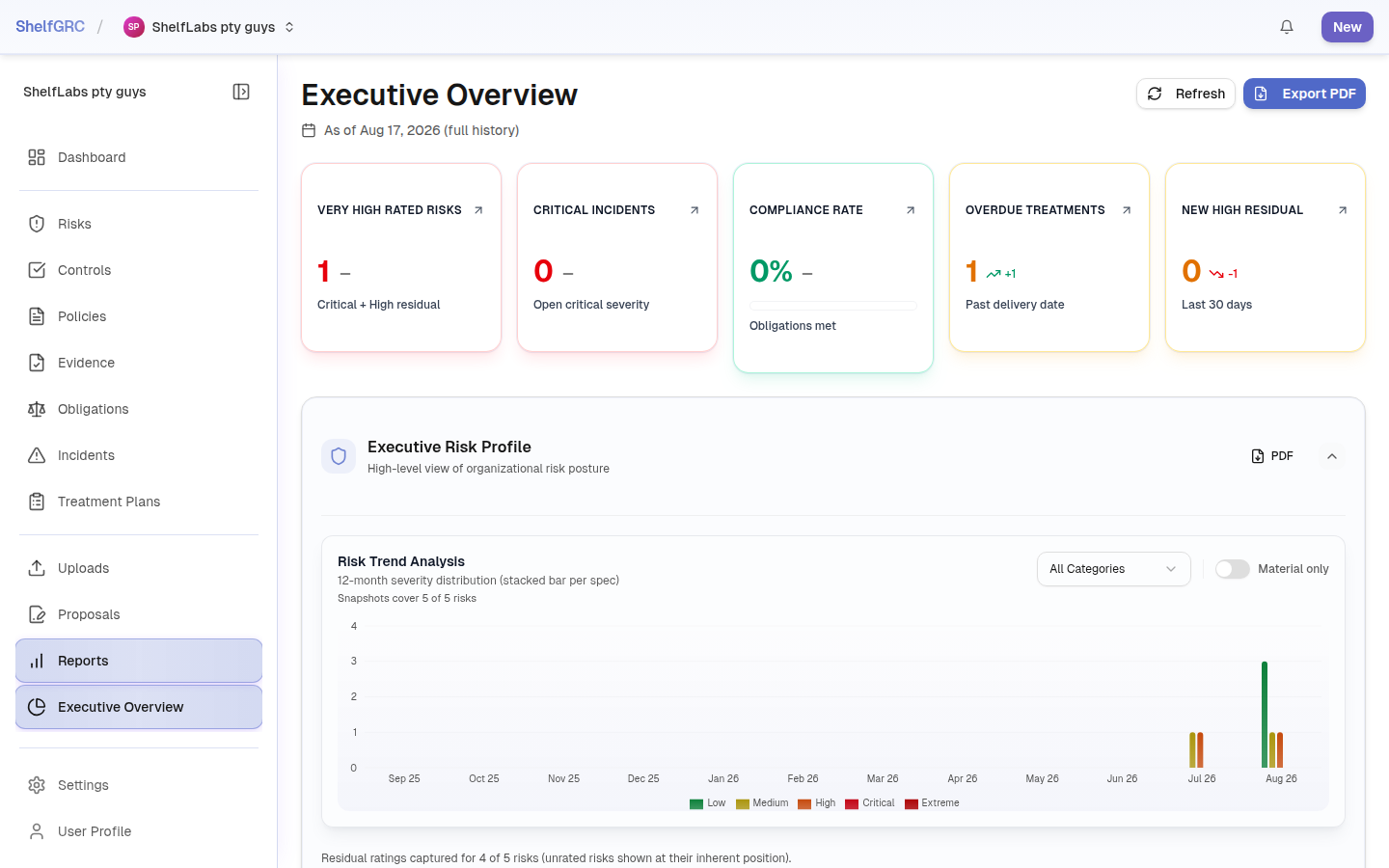
A fixed set of purpose-built views — risk heatmap, KPI cards, trend charts, compliance and treatment-plan performance, breach register, residual risk rating changes — for teams that want a standard picture with no assembly required.
Reporting canvas
A drag-and-drop report builder: place existing chart and KPI blocks on a grid, save it per tenant, and reuse it. An AI narrative block can write a summary of a canvas tile, scoped to only the tools relevant to that tile — a heatmap block can query risk data, a policy block can’t.
Board reports & PDF export
Both the executive dashboard and any saved canvas export to PDF through the same print-safe rendering path, so the exported document matches what was reviewed on screen, not a different layout entirely.
Shareable report links
A generated report can be shared via a link and kept in a report history, so a point-in-time board pack doesn’t have to be re-run to be revisited.
The narrative block’s tool access is scoped per block type, not globally: a heatmap block’s AI narrative can query risk data; a policy-status block’s can query policy data — neither can reach the other’s domain, even though both run the same underlying model (see The AI layer, above).
Glossary & document notes
Terms used above, defined plainly for a mixed audience of security, IT, and procurement readers.
- Tenant
- One customer organization’s isolated slice of ShelfGRC — its own registers, users, and taxonomy, kept separate from every other tenant.
- Org unit
- A business unit, division, or region within a tenant, used to scope which members can see which entity rows.
- Row-Level Security (RLS)
- A PostgreSQL feature that restricts which rows a query can return or modify, enforced by the database itself regardless of what the calling application intended.
- AAL2 (Authenticator Assurance Level 2)
- The assurance level reached after a second authentication factor is verified. Every tenant-scoped route checks for it by default, but the check only bites once a user has voluntarily enrolled an MFA factor.
- RAG (Retrieval-Augmented Generation)
- An AI pattern that searches an indexed knowledge base for relevant content and gives it to a language model as context before it answers, so the answer is grounded in real data rather than the model’s memory alone.
- CSP (Content-Security-Policy)
- A browser-enforced header restricting which scripts a page is allowed to execute, used here with a per-request nonce to block injected script content.
- Maker-checker
- A control pattern requiring one party to propose a change and a second, different party to approve it before it takes effect — applied here to every AI-suggested change.
- Linkage sidecar
- A direct database lookup that answers relationship and count questions in AI chat exactly, bypassing vector search — which finds similar content, not exact relationships.
- Regional database cell
- A regional database that holds a tenant’s full data plane, its registers and its AI search index alike, once the tenant’s chosen region is enabled. Oceania is the home and fallback region.
- Inherent vs. residual risk
- Inherent risk is the raw likelihood and impact before controls are considered; residual risk is what remains after the controls in place are accounted for.
- Severity band
- A named range of the 1–25 likelihood-times-impact score — e.g. Low, Medium, High, Critical — with tenant-configurable thresholds and labels.
About this document
This whitepaper describes ShelfGRC’s architecture and controls as implemented at the time of publication. It is a technical reference, not a compliance certification, an independent audit, a penetration-test report, or a contractual commitment — treat it as a starting point for your own security review, and confirm current specifics (regional availability, certifications in progress, SLA terms) directly with Shelf Labs before relying on it for a purchase decision.
Product user guide
A screen-by-screen walkthrough of ShelfGRC for a new user, taking you from “I have just signed up” to “my risk and compliance program is running.” Screenshots are captured from the live product; the written steps still apply if a screen looks slightly different. The demonstration tenant shown throughout is Shelf Labs’ own test account.
A.1 Getting started — the setup wizard
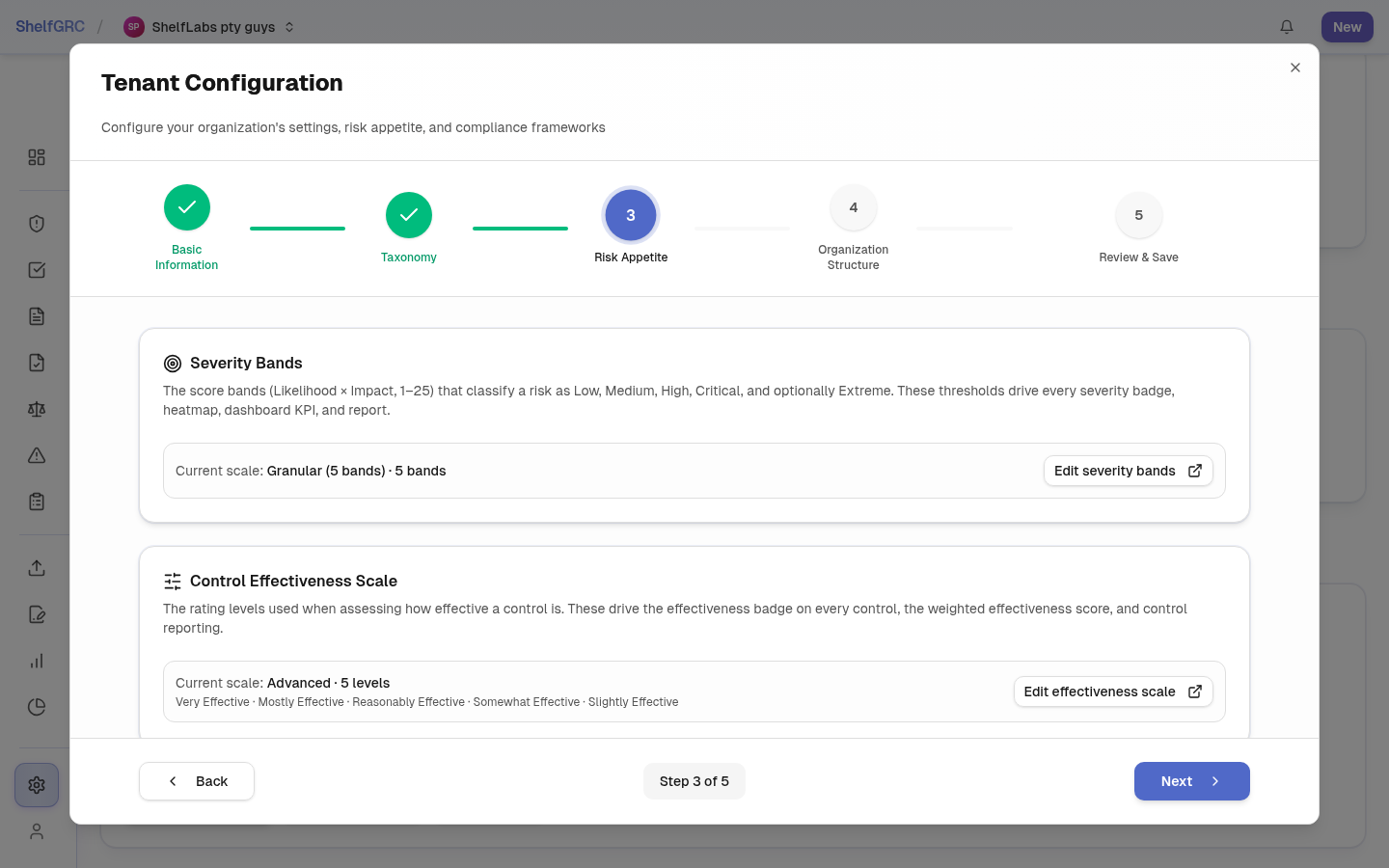
After you create your account, ShelfGRC runs a short setup wizard that establishes the foundations of your program: your organization details, your risk taxonomy, your severity bands and control-effectiveness scale, and your organization structure. Every one of these is a live setting you can revisit later under Settings → Tenant Configuration, so aim for “good enough to start” rather than perfect.
- Confirm your organization name and details.
- Confirm or customize your starting risk taxonomy.
- Set your severity bands and control-effectiveness scale — the thresholds that decide when a risk reads as Low through Critical (or Extreme), and how a control’s effectiveness is rated.
- Confirm your organization structure, then review and save; ShelfGRC applies your configuration.
A.2 Your dashboard
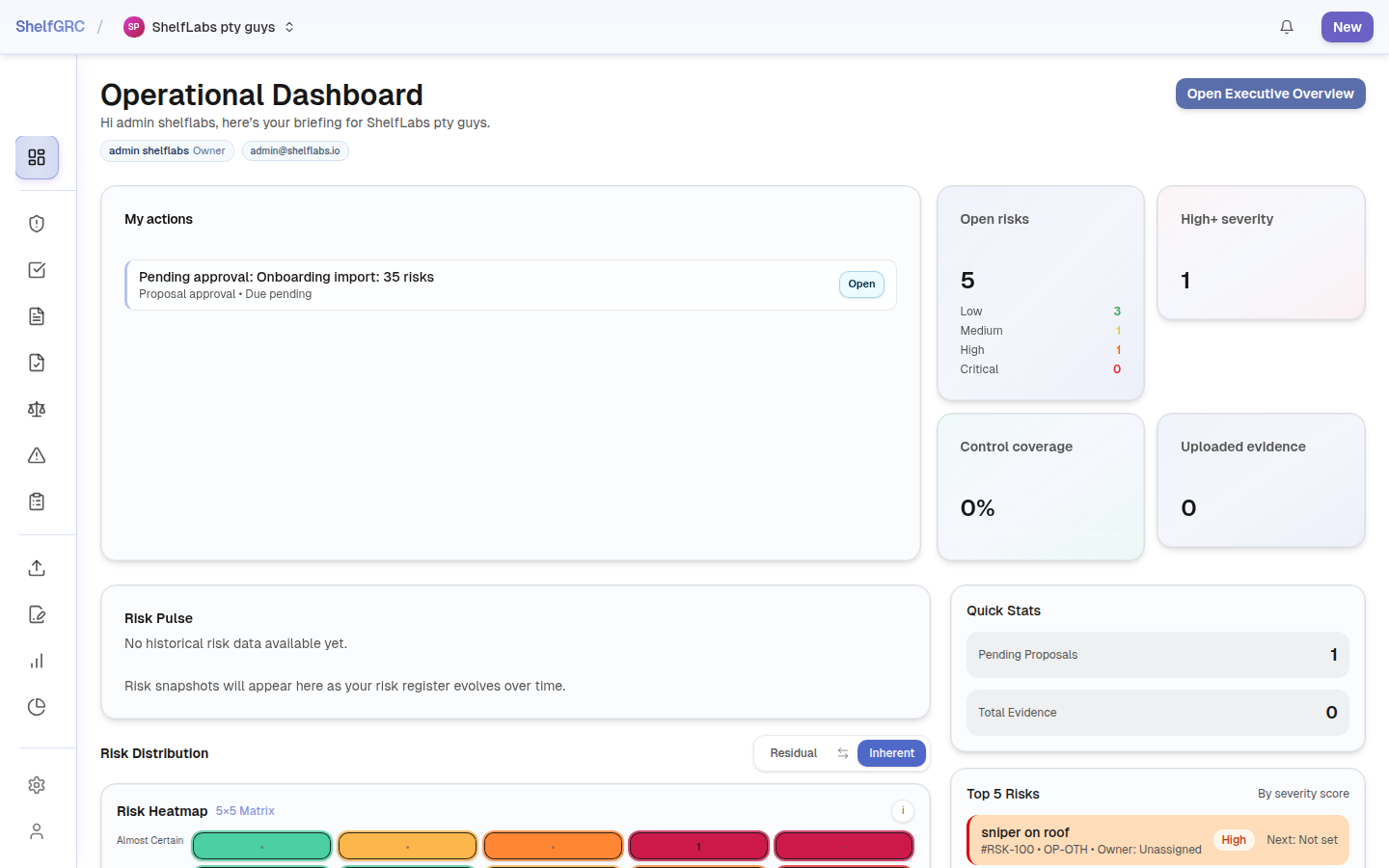
The dashboard is your home base — the answer to “where do I stand right now?” It summarizes open risks, the risk heatmap, compliance coverage, open incidents, and outstanding proposals, with drill-down into each register. Owners and admins additionally see an Executive Overview (see A.12).
A.3 The golden rule — import, propose, approve
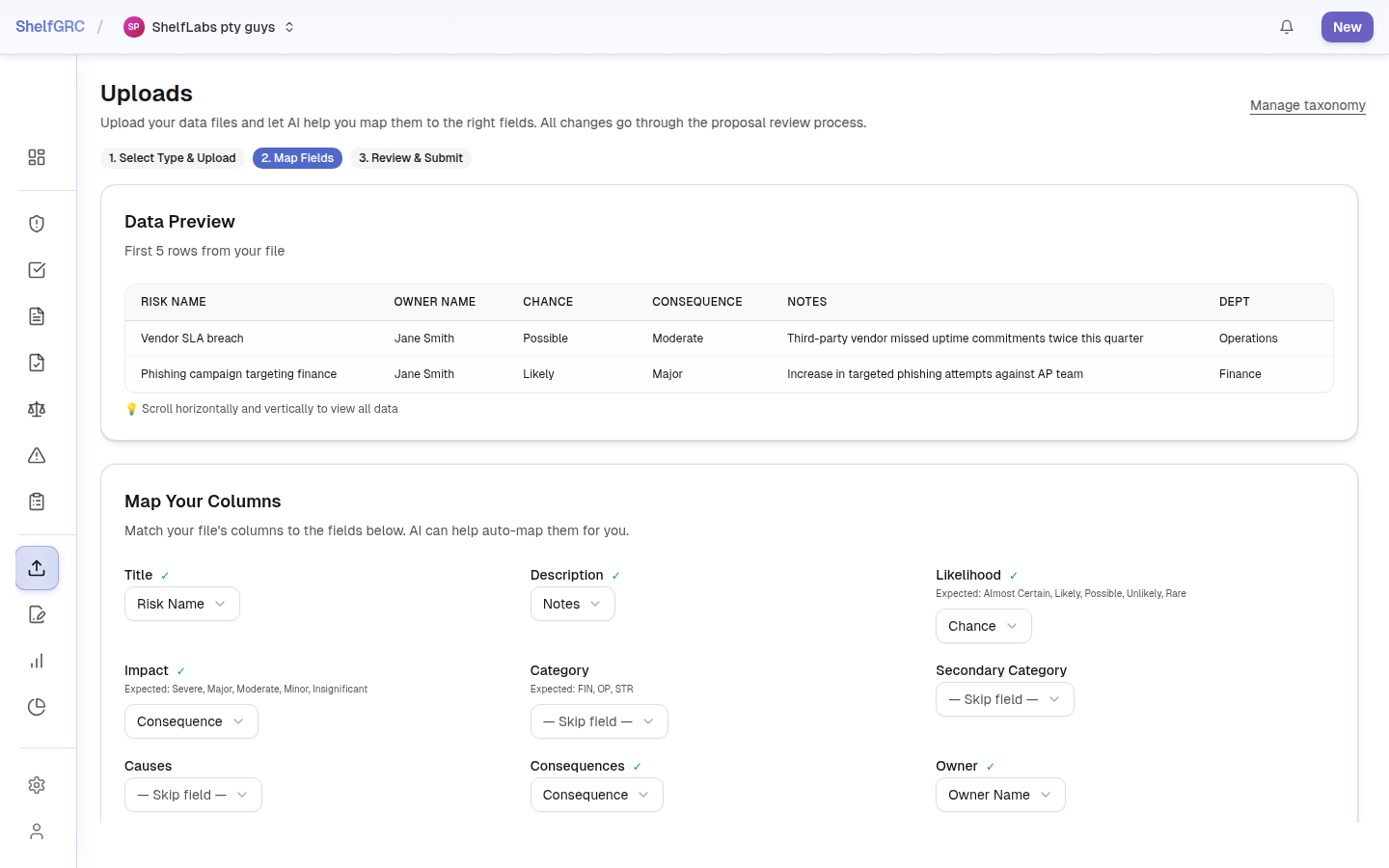
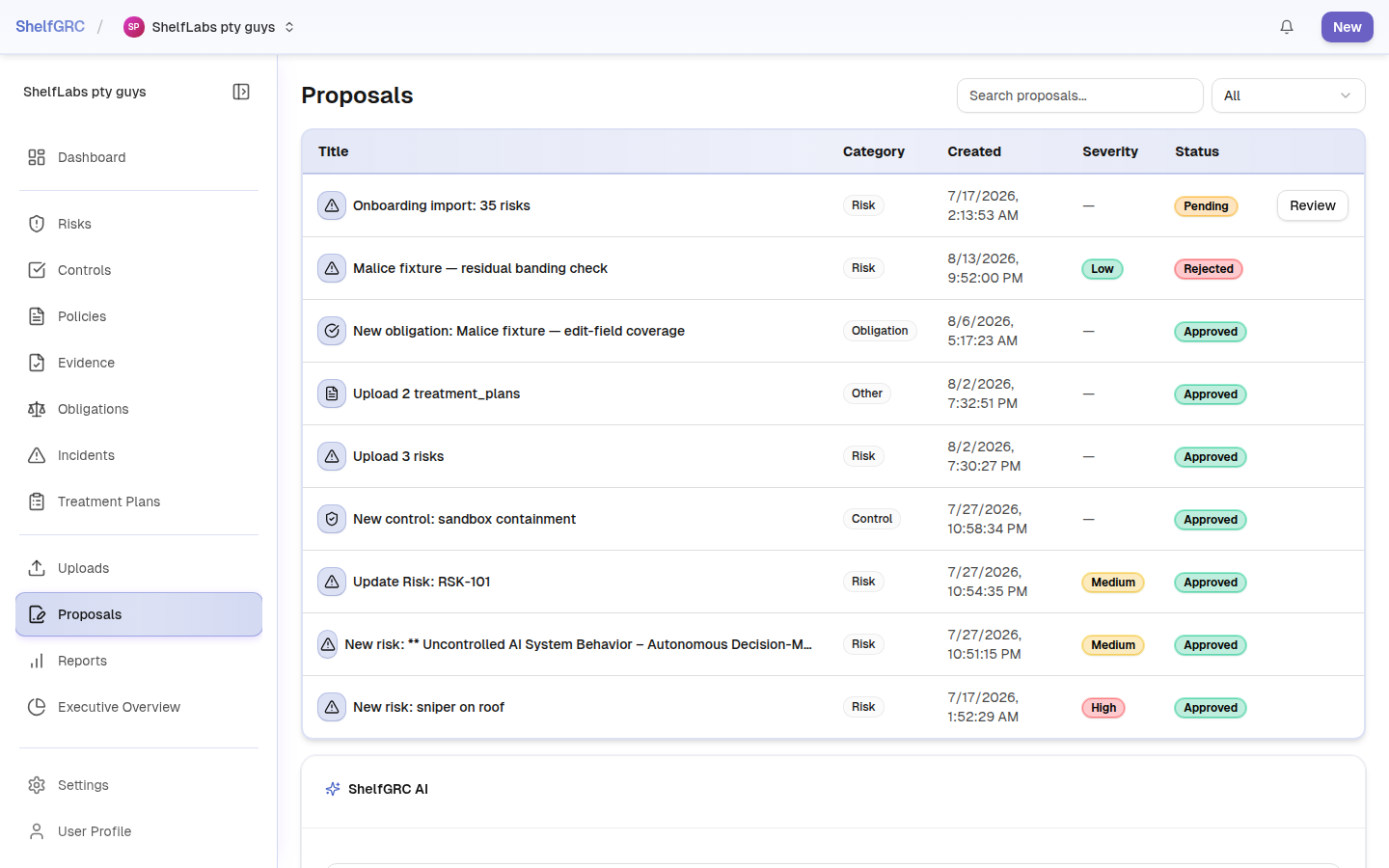
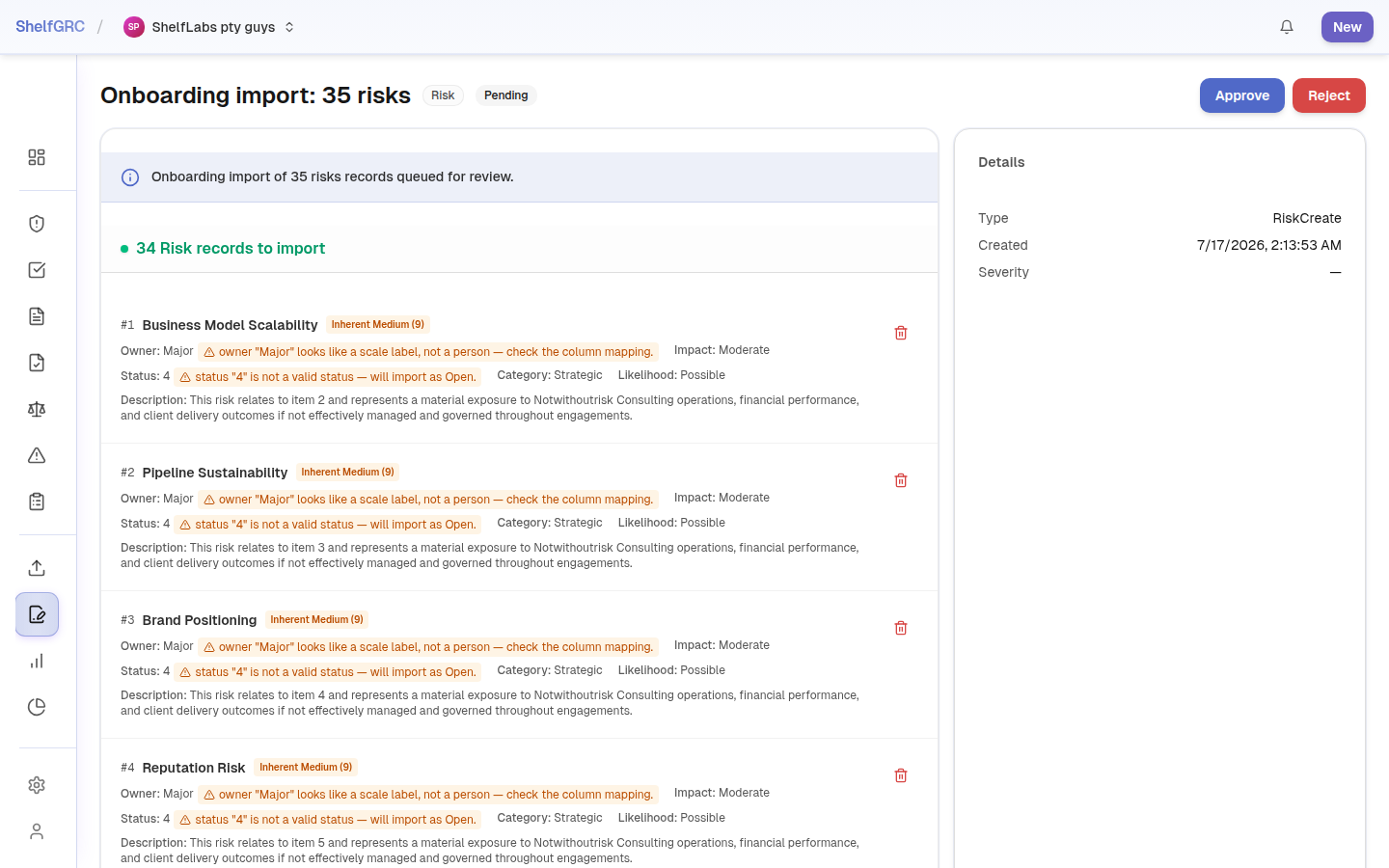
Most data enters ShelfGRC by importing a spreadsheet. When you upload a CSV, ShelfGRC’s AI suggests which of your columns maps to which field — a suggestion you can review and override before anything is created. Nothing is written yet: the import becomes a set of proposals.
- Open Uploads in the left sidebar and select the register you are importing (risks, controls, obligations, and so on).
- Attach your CSV. Review the AI-suggested column mapping and correct any field that is wrong.
- Confirm. ShelfGRC creates proposals rather than live records.
Every proposed change waits in the Proposals queue until a person reviews it. Open a proposal to see exactly what will change, then approve or reject it. Approved changes are written to the live register and attributed to you in the audit trail; rejected ones never touch your data.
A.4 The risk register & heatmap
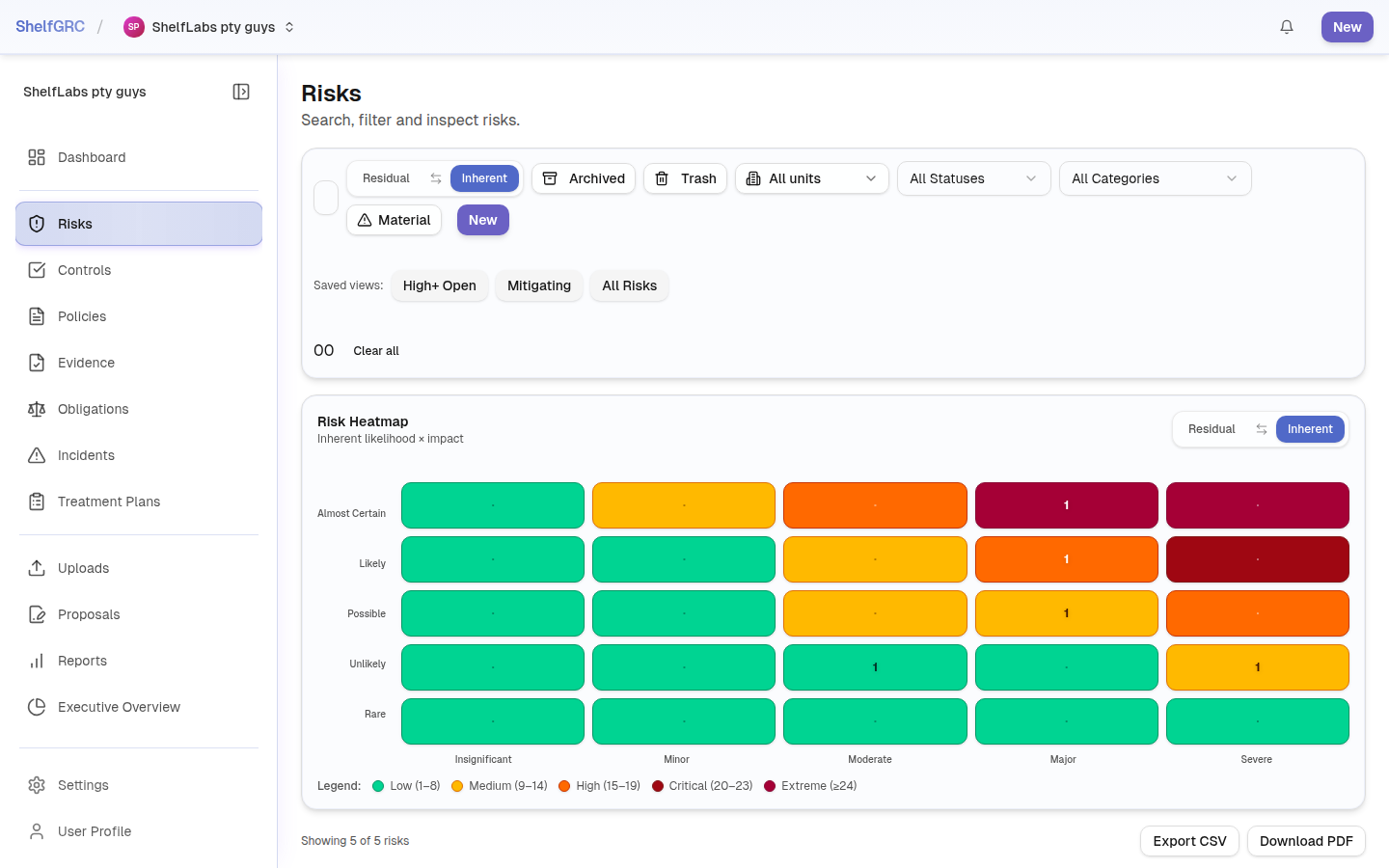
The Risks register is the core of your program. Each risk carries an owner, a taxonomy category, inherent and residual likelihood/impact, and a severity band derived from your configured thresholds. The 5×5 heatmap plots your risks so the most exposed items are immediately visible; filters and saved views let you focus on a business unit, a category, or a severity band.
- Click + New Risk (or import in bulk via Uploads).
- Set the title, description, owner, and category, then score inherent likelihood and impact.
- Link the controls that mitigate it; the residual score reflects those mitigations.
A.5 Controls
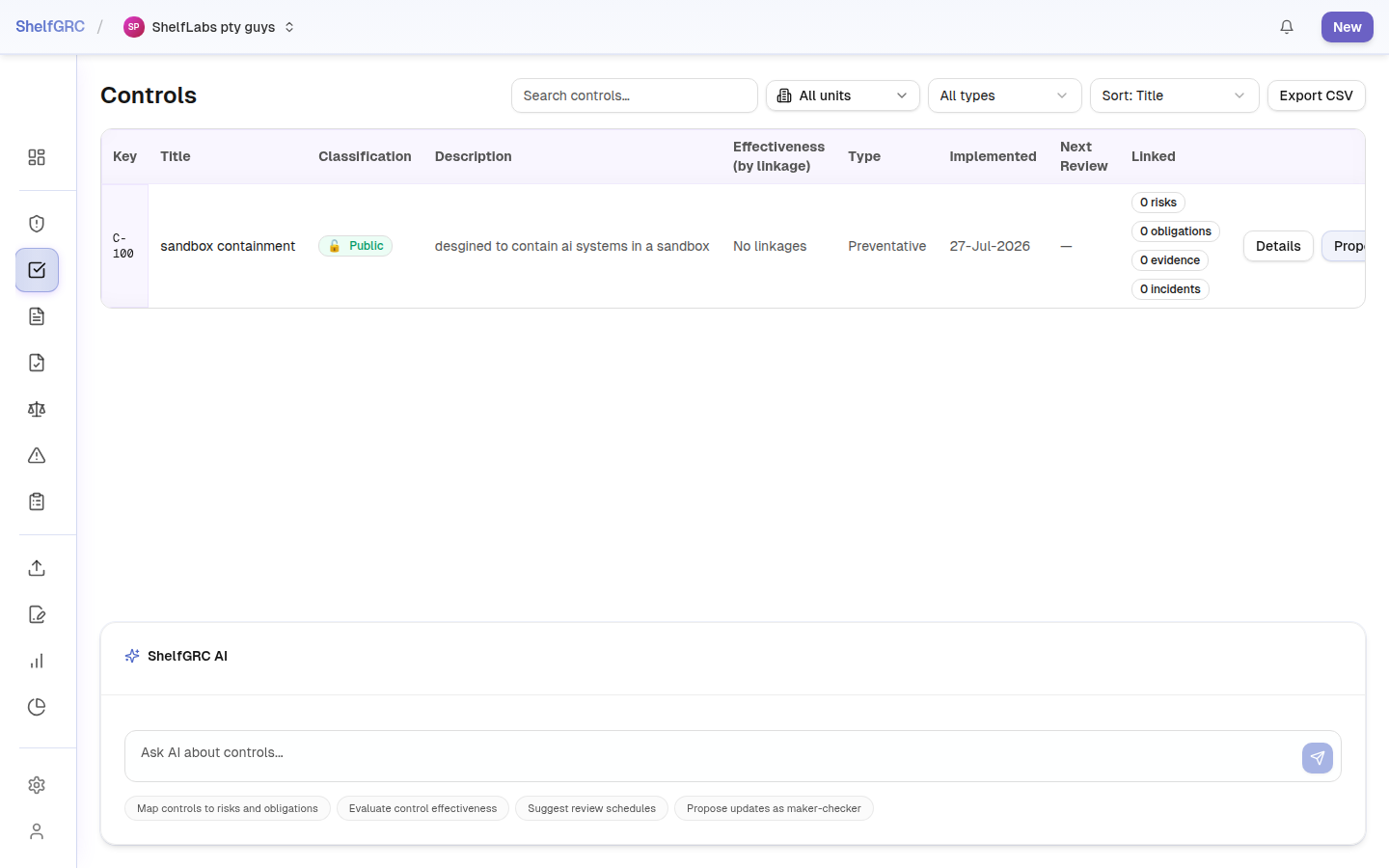
Controls are the measures you have in place to mitigate risks and satisfy obligations. Each control has a type — Preventative (stops something occurring), Detective (identifies when something has gone wrong), or Corrective (restores normal operation) — and an effectiveness rating so you can see at a glance whether a mitigation is adequate. One control can be linked to as many risks and obligations as it addresses; only the link is created, never a duplicate control.
A.6 Treatment plans
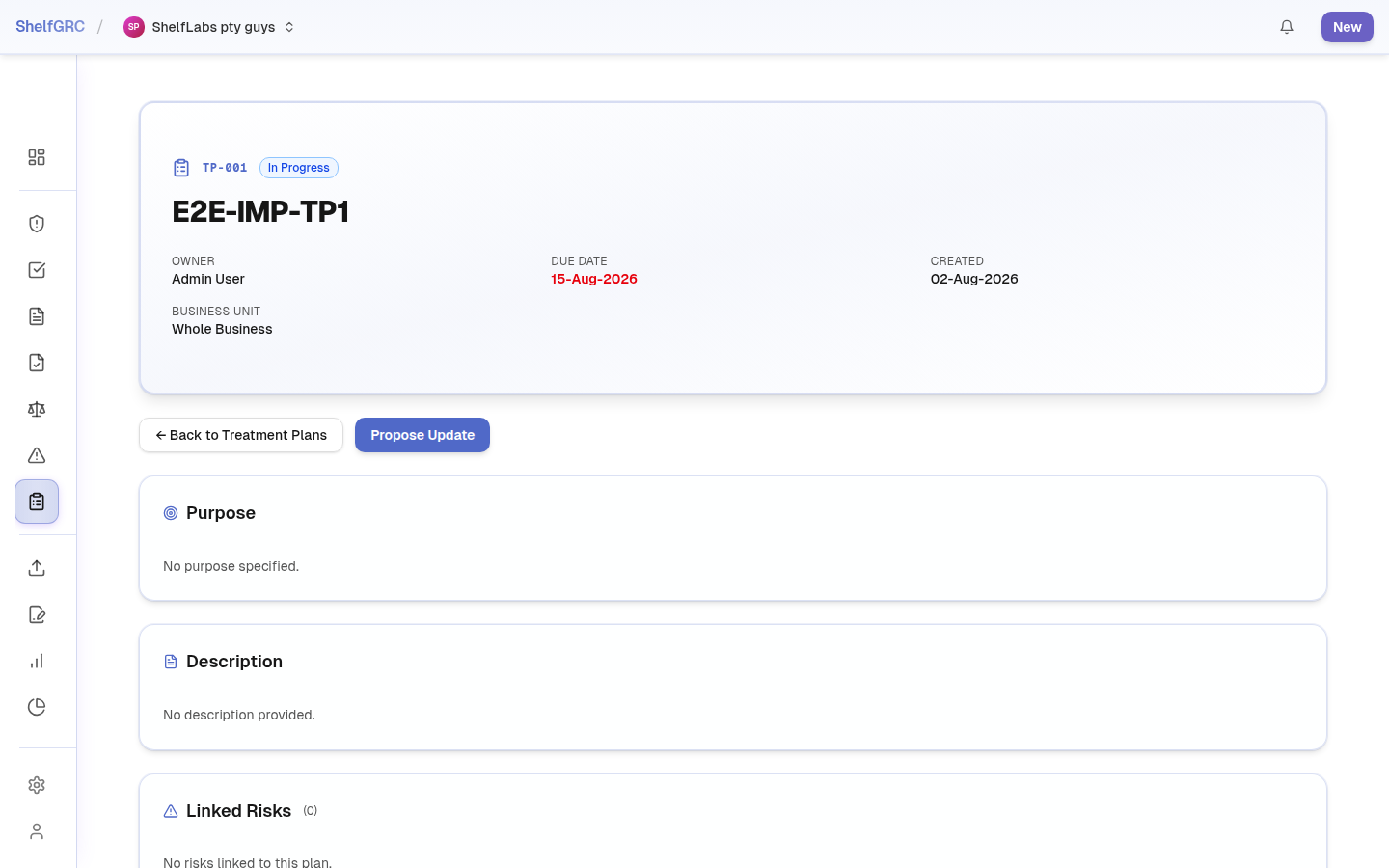
Treatment plans are structured remediation actions for risks that reach your High or Critical threshold; ShelfGRC can prompt you automatically when a risk crosses it. A treatment plan is a standalone record with its own owner, due date, and progress — and it can link several risks, controls, obligations, and incidents at once, which is the shape a real remediation program takes.
- Open the risk detail view and, in the Treatment Plans panel, click + Create Treatment Plan.
- Set the title, owner, due date, and a description of the remediation.
- Track progress as the work proceeds; overdue plans surface on the dashboard and in reports.
A.7 Obligations
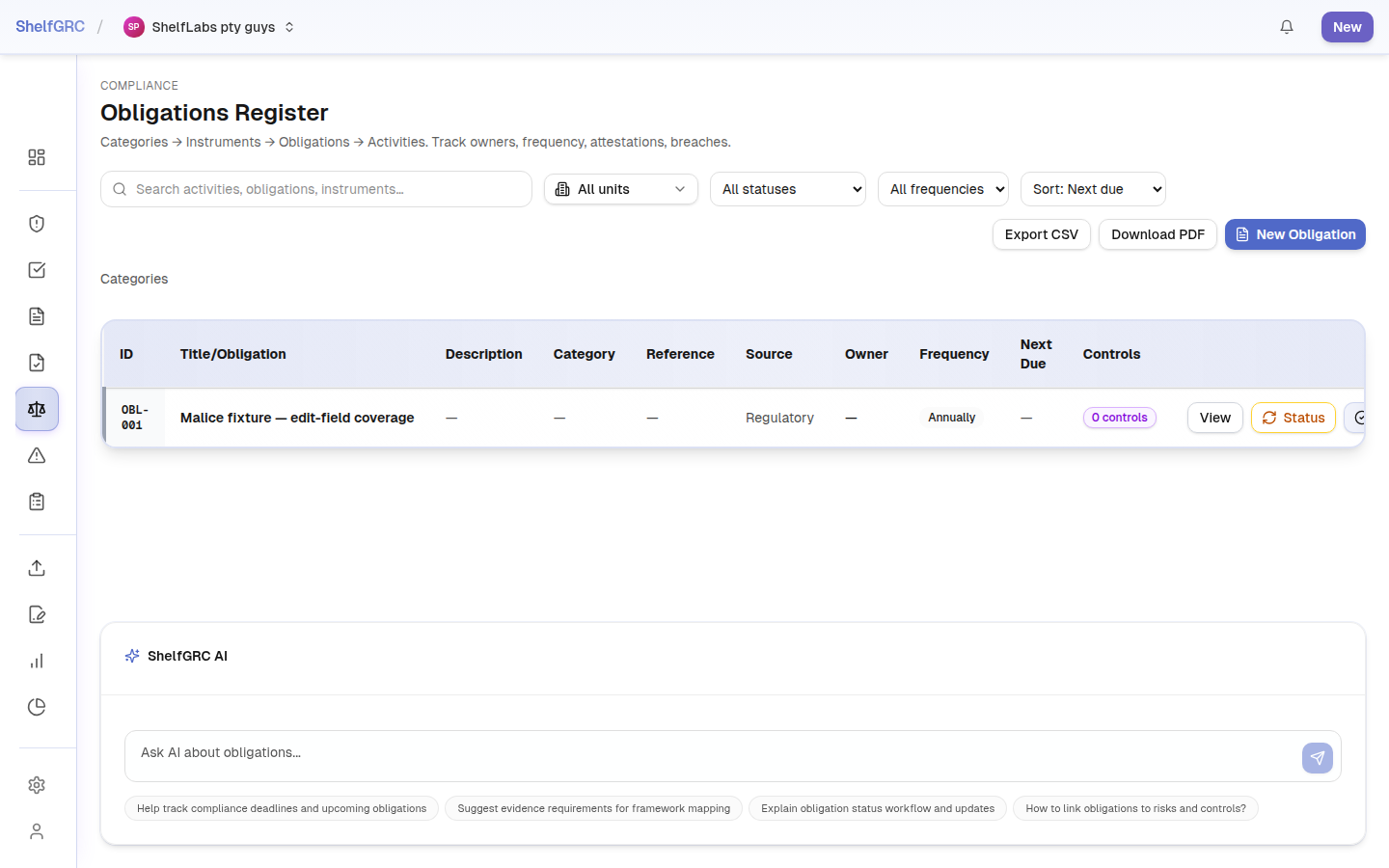
Obligations are the regulatory, legislative, contractual, and internal-policy requirements you must meet. Each carries a source (for example “GDPR Art. 32” or “ISO 27001 A.9”), an owner, and a compliance status — including a genuine Partially Compliant state with a percentage. To find your live gaps, filter the register by Status = Non-Compliant and check whether each gap has a linked control; if not, that is where a new control needs to be created or linked.
A.8 Evidence
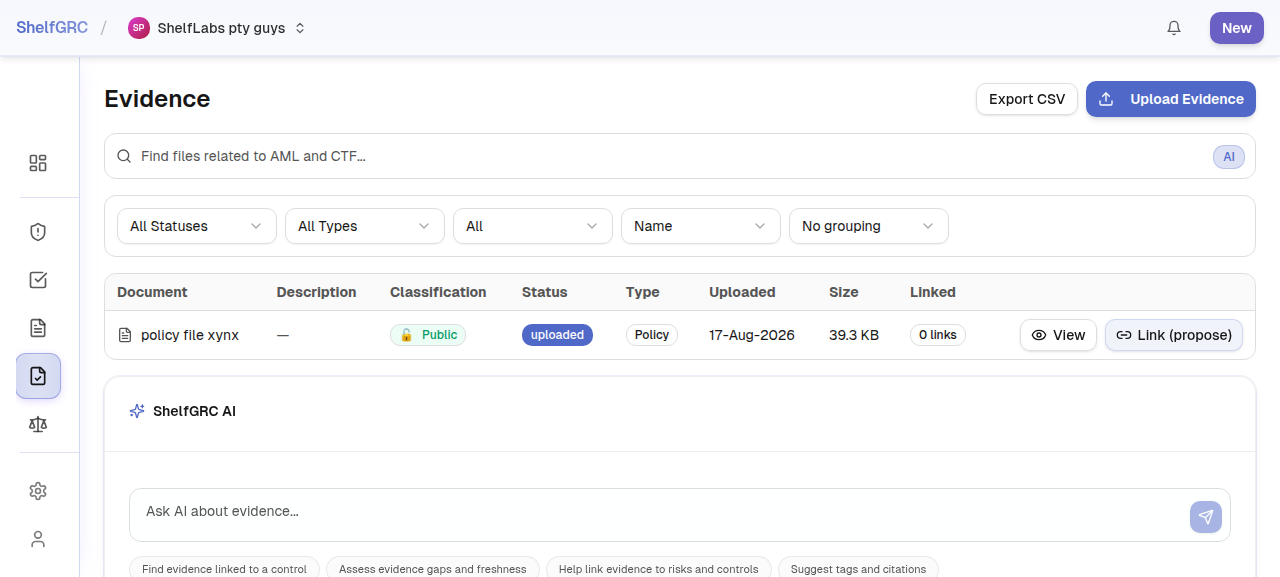
Evidence files prove your controls and policies are working — test results, access-review logs, certificates, audit trails. Upload evidence through Uploads → Evidence, giving each file a specific title and a detailed description (the title and description are what make it findable and linkable later, and what the AI assistant can cite). Once the resulting proposal is approved, link the evidence to the controls and obligations it satisfies, and set an expiry date on time-sensitive documents so the platform can surface them before they lapse.
A.9 Incidents & the breach register
The Incidents register captures security events, near-misses, and breaches. Four fields — Title, Description, Category, and Severity — drive all incident reporting, so complete them thoroughly at creation time even while the investigation is ongoing. Update the Status as the incident moves through its lifecycle (Open → In Progress → Resolved → Closed), assign an owner, and link any risks the incident materialized or elevated. A dedicated breach extension records whether an incident is notifiable, which regulator it was reported to, and when.
- Click + New Incident on the Incidents list page.
- Fill in the Title, Description, Category, and Severity; set the Status to Open and assign an Owner.
- Optionally link any existing Risks the incident relates to, then Save.
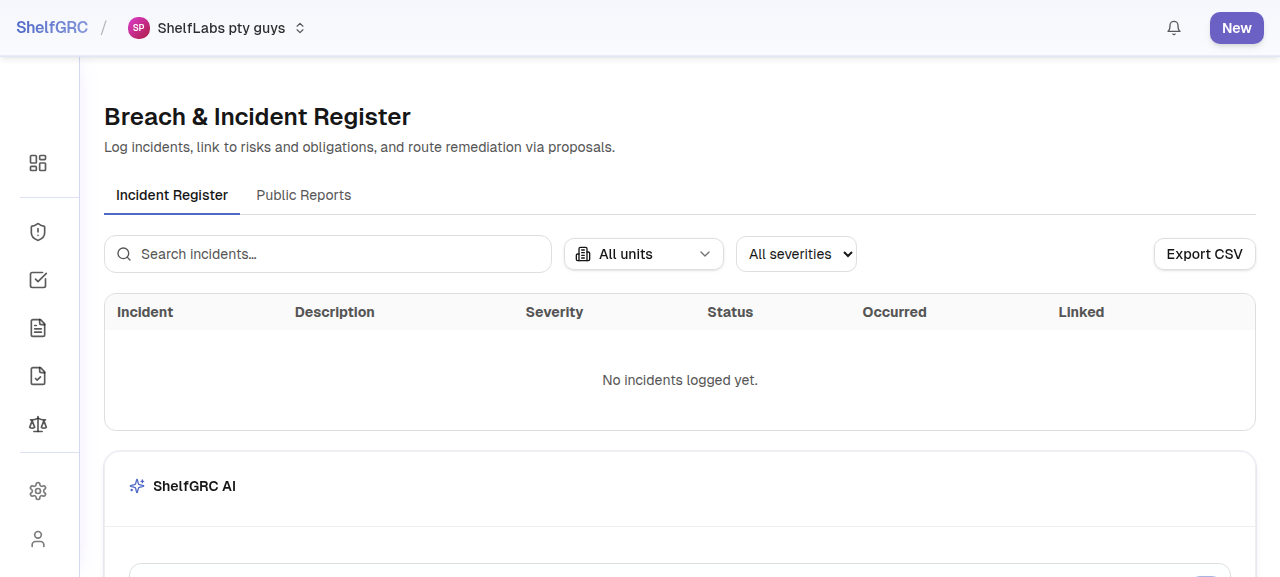
Opening a saved incident shows the same fields in full — status, owner, and any linked risks — plus the breach extension. Incidents can also arrive through public submission links — shareable URLs that let anyone submit a report without a ShelfGRC account. Submissions land directly in the register as new records for triage. You can create as many links as you need (for example one for staff, one for suppliers, one for the public), managed under Settings → Incident Links.
A.10 Team, roles & MFA
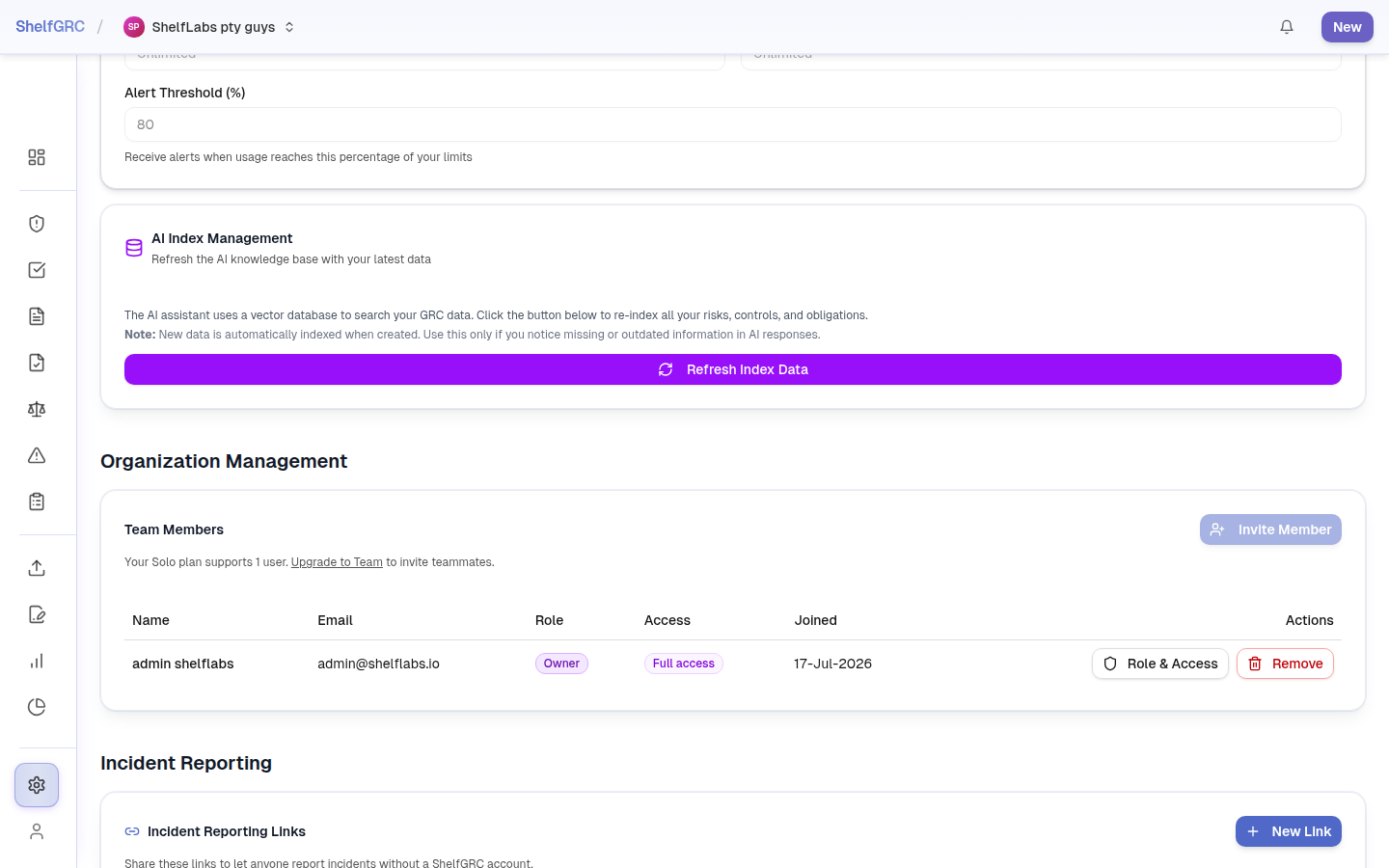
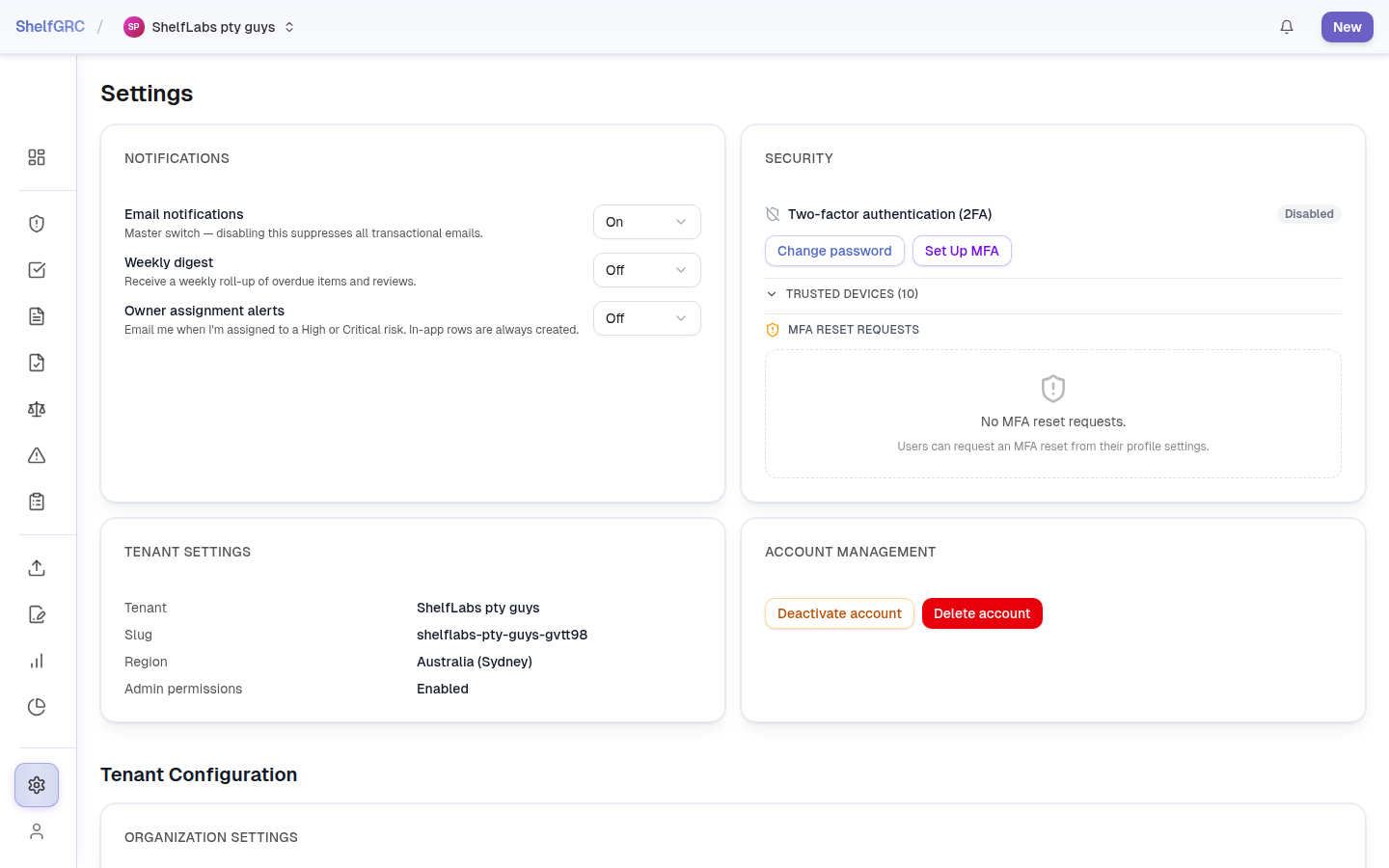
Administration lives under Settings. The Team tab lists every member, their role, and their access, and lets Owners and Admins invite new ones — inviting requires a paid seat beyond the single user a Solo plan includes. The Security tab covers your own account: change your password, and enroll in multi-factor authentication (MFA) — enrollment is opt-in per user, there is no organization-wide policy toggle.
- Go to Settings → Team and click Invite Member (Team plan or above).
- Enter the person’s email address and select their role — Owner, Admin, or Member.
- Send the invitation; if it does not arrive, use Resend on the pending invite.
Under Settings → Security, each user enrolls their own MFA factor with Set Up MFA — there is no admin-set “require/allow/disable” policy; every tenant-scoped route checks assurance level (AAL2) by default, and that check only bites once a user has personally enrolled (see §4). Admins see a Trusted Devices list and an MFA Reset Requests panel: if a member loses their authenticator, their reset request appears here for an admin to action.
A.11 The AI assistant
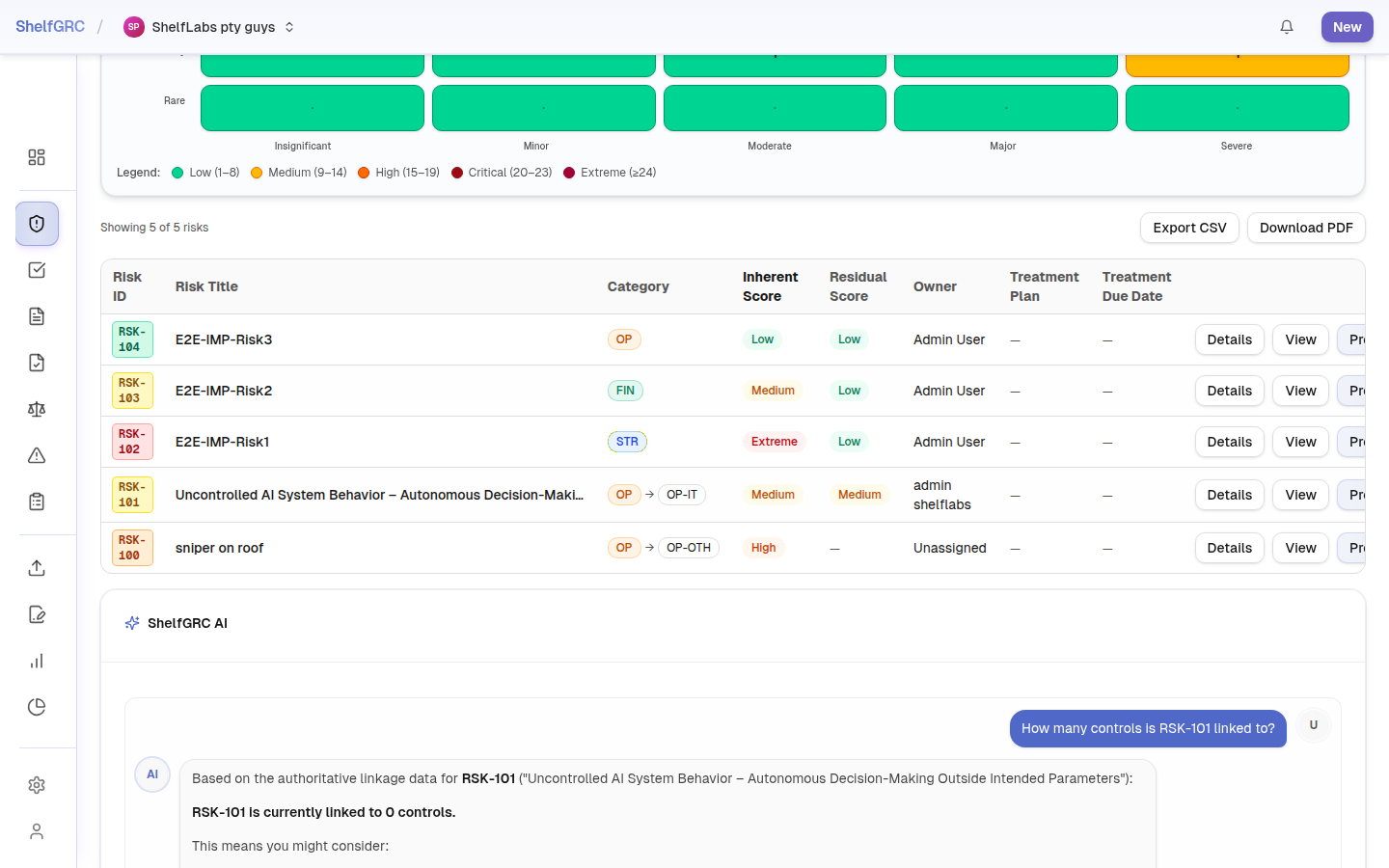
The Ask AI bar sits at the bottom of most screens and answers questions about your data and how to use ShelfGRC. It searches only the data you are allowed to see, cites the records behind its answers, and routes relationship and count questions to an exact lookup so “how many controls is this risk linked to?” returns a precise number rather than an estimate. Crucially, the assistant drafts and suggests — anything it proposes to change your registers still passes through the Proposals queue for your approval.
A.12 Reporting
ShelfGRC turns the same underlying registers into board-ready output without a spreadsheet in between. The Reports hub offers purpose-built reports — Enterprise Risk Profile, Obligations Report, Incident Summary, and more — generated on demand against live data. Export any report to PDF using your browser’s Print → Save as PDF; the views are print optimized for clean A4 output.
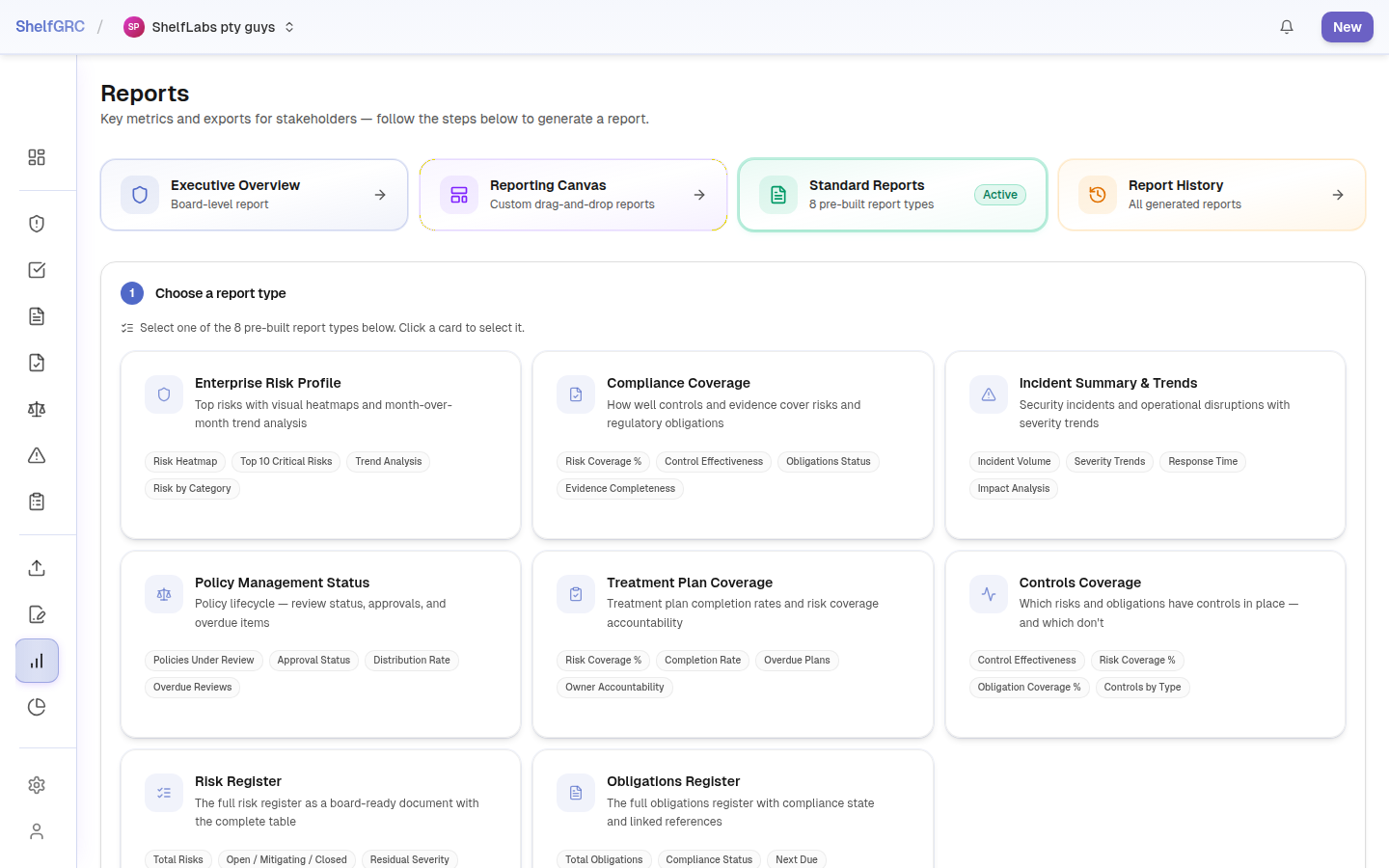
Owners and admins also have the Executive Overview: a single, always-live posture summary — heatmap, KPIs, compliance coverage, breach register, and risk movement — that a CRO or CISO can open directly. For fully custom board packs, the Reporting Canvas lets you drag chart, metric, table, text, and image widgets onto a grid, save the layout per tenant, and reuse it; an AI narrative widget can summarize a tile, scoped only to that tile’s data.